Getting
started.
Requirements, install, Preview mode, license key and Go live, in the order you will do them.
Requirements
- WordPress 6.0 or newer and PHP 7.4 or newer.
- To try it: nothing else. The bundled sample listings work for anyone.
- For live listings: an IDX Bloom license and an approved MLS data connection. You, or your brokerage, must be an MLS participant.
Install
- In WordPress go to Plugins, Add New, Upload Plugin, choose idx-bloom.zip, then Install Now and Activate.
- Open IDX Bloom in the admin menu and click See it on your preview page.
- When you like what you see, add your license key and click Go live.
Your Home screen
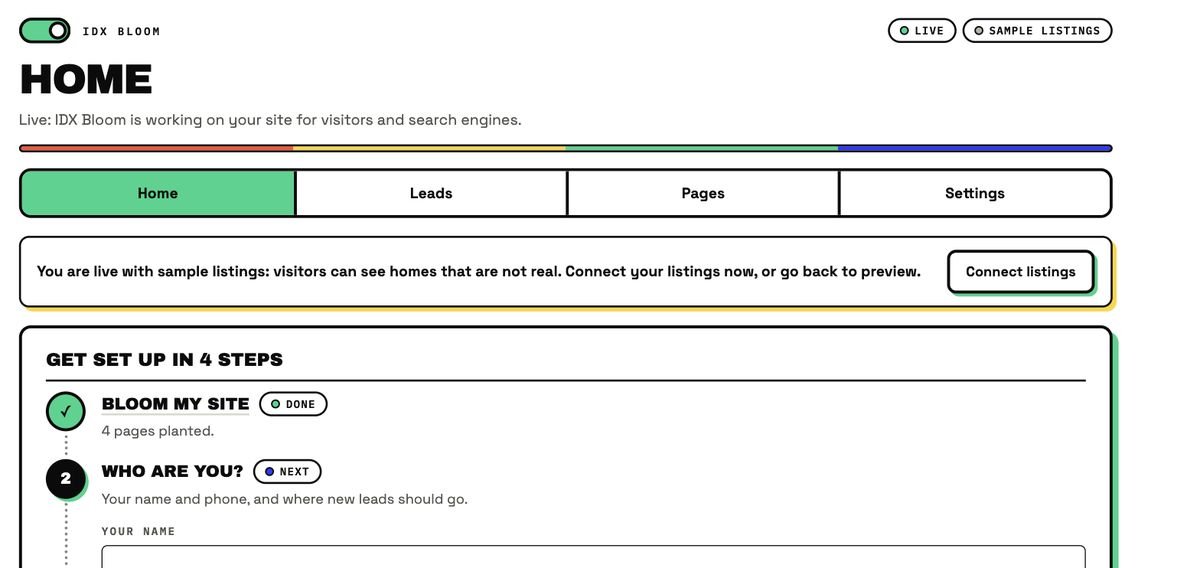
The Home screen walks you through setup. The admin has four menus: Home, Leads, Pages and Settings.
- 1Get set up in 4 steps. Bloom my site, who you are and where leads go, connect your listings, Go live.
- 2The next step is always highlighted.
Preview mode
Every new install starts in Preview mode, which is safe on a live site. IDX Bloom runs only on one private page, IDX Bloom Preview, that logged-in editors and admins can open, using clearly labeled sample listings.
- Nothing appears to visitors or search engines, and no other page changes.
- Planting, grown pages, robots.txt and sitemap additions, IndexNow, llms.txt, structured data outside the preview page, bot counting and tracking are all off.
- A banner on every IDX Bloom admin screen has View preview page and Go live, and Back to preview is in Settings.
- The preview page is deleted when the plugin is uninstalled.
Preview versus Live
The diagram shows the difference. In Preview, one private page shows sample listings and nothing reaches Google. Live plants listings on matching pages and opens approved grown pages.
Go live
Add your license key, then click Go live and confirm on the page. In version 1.5, Go live stays blocked while the listings are samples, until you connect real listings. Existing installs that had already bloomed stay live after an update. You can return to Preview from Settings.
Who can show real listings? See the decision tree on MLS coverage. MLS coverage →
License key
Live listings need an IDX Bloom license. Enter your license key in the plugin settings. No API keys live on your site: AI features run through the IDX Bloom service, using your license key. Do not have one? Start a free pilot.
Questions, answered
Do I need a developer?
No. In WordPress go to Plugins, Add New, Upload Plugin, choose idx-bloom.zip, then Install Now and Activate. Open IDX Bloom in the admin menu and follow the four setup steps. A developer or agency can do it for you, but it is not required.
Will visitors or Google see anything while I test?
No. In Preview mode IDX Bloom only runs on one private page that only logged-in editors and admins can open. It adds nothing to robots.txt, your sitemap or any other page.
Do I need to be an MLS participant?
To show real MLS listings, yes. IDX rules let only MLS participants, or agents under a participating brokerage, display listings. The sample listings work for anyone.
Does it edit my pages?
No. Listings are added when a page is shown, never saved into your content. Deactivate the plugin and every page returns to exactly how it looked before.
What happens if I deactivate or uninstall it?
Deactivate the plugin and every page returns to exactly how it looked before, because IDX Bloom never edits your pages. Uninstalling also deletes the private preview page.
Can I keep my old IDX while I try IDX Bloom?
Yes. Preview mode runs on one private page and changes nothing else, so you can test IDX Bloom next to what you have now and switch when you are ready.
Is IDX Bloom live yet?
Plugin version 1.5 runs on the live demo and on a real agent site, in Preview mode. IDX Bloom is in pre-launch: it opens first in a small group of pilot markets, and live MLS listings need an approved data connection. You can start a free pilot, no card.
How long does MLS approval take?
We cannot give a number. Approval depends on your MLS and on the data connection for it. Until it is approved, you run on sample listings in Preview mode.